Features
Your booth folder, synced straight to the print queue
Punchframe Helper is a Windows app that watches your photo booth folder and uploads every new photo to your event's print queue, even with the browser closed.
Updated
The problem
Photo booth software saves each shot to a folder on the booth computer. Getting those photos onto a keychain sheet usually means someone copying files by hand, or keeping a browser tab open with a watch folder connected. If the tab closes, the laptop sleeps or the Wi-Fi drops, photos stop arriving and nobody notices until guests are waiting at the printer.
How the Punchframe Helper works
Punchframe Helper is a small Windows app that watches your booth's output folder and sends every new photo to your Punchframe event. It runs in the system tray, so it keeps working when the browser is closed.
Sign in once
Click Sign in with Punchframe. Your browser opens, you check that the code matches the one in the app, and approve. The helper stays signed in on that computer, and you can disconnect it at any time from Connected computers on your account page.
Pick an event and a folder
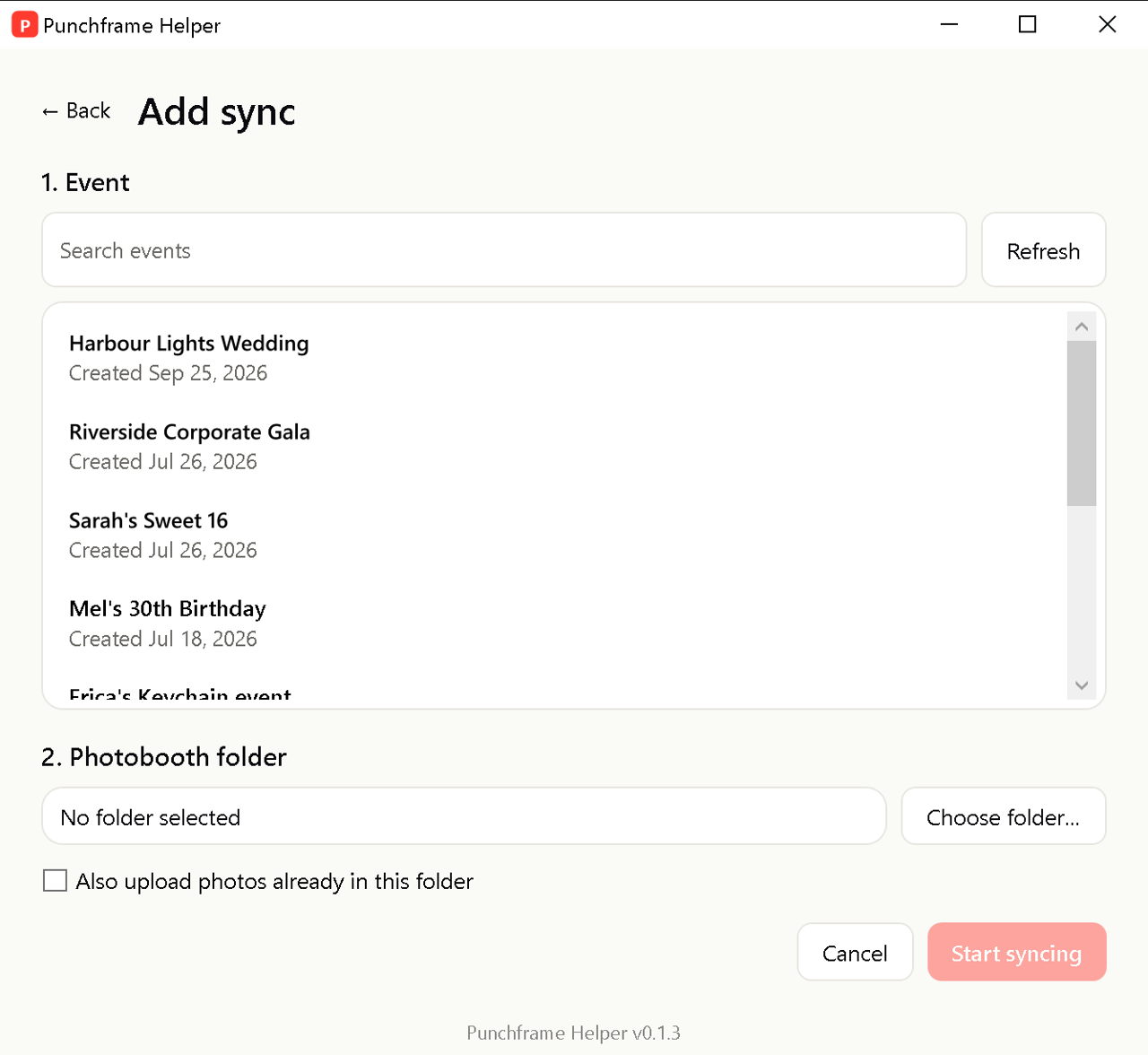
Click Add sync, choose the event from the list, then choose the folder your booth software saves to. Search narrows the list when you have many events, and events with a date are sorted by it. New photos are uploaded from the moment you start. Tick Also upload photos already in this folder if you want the ones already there too.
Photos land in your queue
When a JPG or PNG finishes saving, the helper resizes it and uploads it. It shows up in the incoming queue on the event's run screen, ready to frame and place on the keychain sheet. Photos from the booth folder are framed on the faces automatically when they open.
The helper never locks your booth's files. It copies each finished photo to its own cache and uploads from there, so your booth software can keep writing to the folder.
It keeps going when the network does not
If the internet drops, photos wait in a queue on the computer and the card shows how many are waiting. When the connection comes back they upload on their own, without duplicates. If you quit the app or restart the computer, unfinished uploads pick up at the next launch.
At a real event
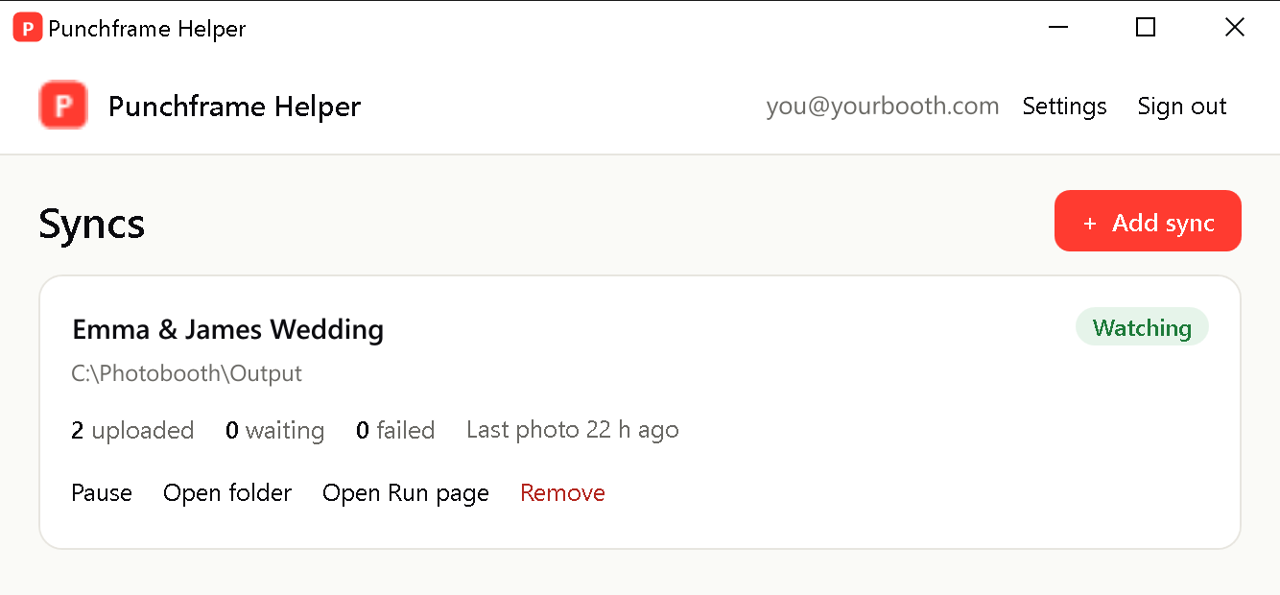
You set up the booth an hour before the reception. On the booth laptop you open Punchframe Helper, click Add sync, pick tonight's wedding and point it at the folder your booth software saves to. The card says Watching. From then on every shot goes to the run screen on your printing laptop across the room. Halfway through the night the venue Wi-Fi drops for ten minutes. The card shows photos waiting, and they come through as soon as it reconnects.
Common problems
- Photos are not showing up. Check that the card says Watching and not Paused, and that the folder is the one your booth software saves to. Only JPG and PNG files are uploaded.
- The card says Offline. The computer has lost its internet connection. Photos wait on the computer and upload when it is back.
- Old photos from the folder did not upload. A new sync only sends new photos. Remove the sync and add it again with Also upload photos already in this folder ticked.
- You closed the window and it is still running. Closing the window sends the helper to the system tray. Choose Quit from the tray icon to exit.
Who it's for
The Punchframe Helper suits any booth where photos are taken on a Windows computer:
- DSLR and mirror booths
- Open-air and iPad booths that save to a shared folder
- Roaming photographers tethered to a laptop
- Setups where the booth computer and the printing laptop are different machines
Questions
Does the Punchframe Helper work on a Mac?
Not yet. The helper is a Windows app. On a Mac you can connect a watch folder from the run screen in Chrome or Edge while the tab stays open.
Do I need to keep a browser open for photos to sync?
No. The helper runs in the Windows system tray and uploads photos with the browser closed. You only need the browser to sign in and to print.
What happens if the internet drops during the event?
Photos wait in a queue on the booth computer. When the connection comes back they upload on their own, and nothing is sent twice.
Will it slow down or interfere with my booth software?
No. The helper copies each finished photo before uploading, so it never locks the files your booth software is writing.