Features
Faces framed in the circle, automatically
Guest uploads are cropped to your keychain circle automatically using on-device face detection, so everyone in the group stays inside the cut line.
The problem
A keychain is a small circle, and most photos are tall rectangles. A plain center crop works for a single close-up, but it cuts the people on the ends out of a group shot and leaves a lot of background around someone standing far from the camera. When you auto crop photos for keychains, the crop has to know where the faces are, not just where the middle of the picture is.
At a busy booth nobody has time to check every guest upload by hand. A bad crop is usually found when the keychain is already punched.
Auto crop photos for keychains with Punchframe
Automatic framing runs on photos guests send through the guest upload portal, and on photos you add yourself on the run screen. For guests it happens on their own phone, in the browser, before the photo is sent to you.
It finds the faces
Punchframe runs face detection on the photo right on the guest's device. The photo does not leave the phone for this step. Very small faces are ignored on purpose, so a face on a poster, a T-shirt or a person far in the background does not pull the crop off the real subject.
It fits everyone inside the cut
The crop is sized to the number of people found. A group photo is framed tightly so everyone fits inside the circle. A single person gets a looser crop with room around their head. If no faces are found, Punchframe looks for the subject against the backdrop instead, and if that finds nothing it falls back to a plain crop that covers the circle.
It also will not zoom in so far that the print goes soft. On a small or low-resolution photo, it keeps a wider crop rather than enlarging a blurry face.
The guest sees the result and can change it
The guest sees their photo framed in your keychain shape, with your printed border if you have one turned on. If everyone fits, the screen says "Looking good". If the crop could not fit everyone inside the circle, it tells them and asks them to tap Adjust. Adjust opens a cropper with pan and zoom so they can fix it themselves. If framing takes more than a moment, a "Position it myself" button appears so a guest is never stuck waiting.
Photos you add yourself
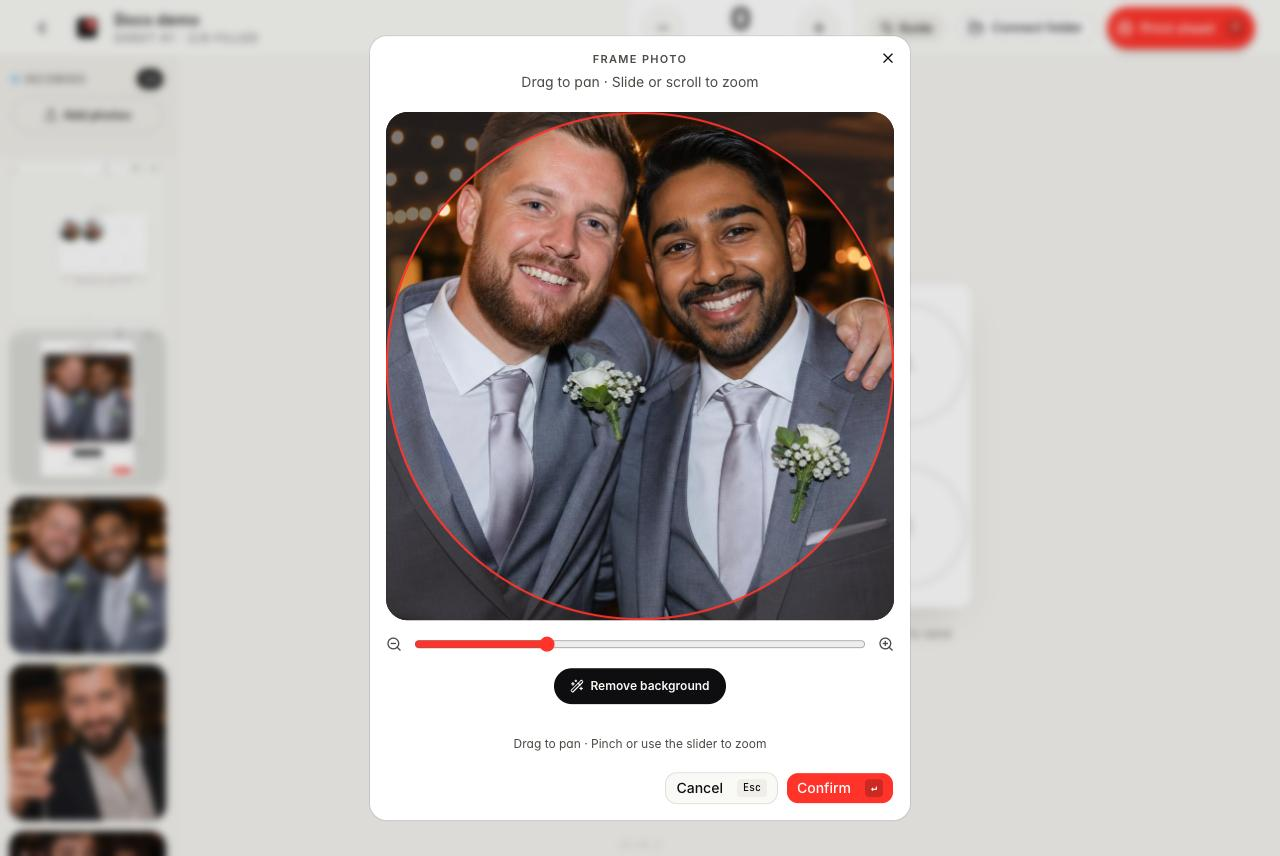
Photos you add with Add photos, and photos from a connected booth folder, open in the framing dialog on the run screen already framed on the faces, using the same steps as guest uploads. The photo shows right away with "Finding faces" underneath, and the crop moves onto the faces when detection finishes. If you start dragging or zooming first, your adjustment is kept. If detection takes longer than two seconds or fails, the photo stays on the default crop. Guest photos are already framed and are not cropped again.
To turn it off for booth folder photos, open the event settings, find Framing, and switch off Auto-crop booth folder photos. Photos added with Add photos are still auto-cropped. Drag to pan, scroll or use the slider to zoom, and press Enter to confirm. If a border is on, the dialog shows it, so you frame the photo inside the border.
Who it's for
Automatic framing helps most where many guests send their own photos:
- Wedding photo booths
- Corporate event activations
- Bar and bat mitzvahs
- Trade-show booths
- Party favor businesses
- Brand pop-ups
It is part of the guest portal, so it pairs with keychain, magnet and button printing wherever guests upload from their phones.
Questions
Does auto crop work for group photos?
Yes. It finds every face above a minimum size and sizes the crop so all of them fit inside the circle. If a group is too wide to fit, the guest is told and can adjust the crop before sending.
Are guest photos uploaded to a server for face detection?
No. Face detection runs in the guest's browser on their phone. Only the finished photo is sent to your queue when the guest taps send.
What happens if there are no faces in the photo?
Punchframe looks for the main subject against the background, which can help with pets and objects. If it cannot find one, it uses a plain crop that fills the circle, and the guest can still adjust it.
Does auto crop also work on photos from my booth camera?
Yes. Photos you add and photos from your booth folder open in the framing dialog already framed on the faces. You can still pan and zoom before pressing Enter, and you can turn it off for booth folder photos in your event settings.