Features
Guests send their own photos from their phones
Print a QR code for your booth. Guests scan it, pick a photo on their phone, check the auto-framed crop, and it lands in your print queue ready to go.
The problem
Half the best photos at an event are already on guests' phones. Without a way to get them to the booth, someone has to collect them by text or AirDrop, save them to a laptop, and crop each one by hand. A photo booth guest upload QR code removes that step: guests send the photo themselves, and it shows up where you print.
The catch is framing. A photo sent straight from a phone is a tall rectangle, and your keychain is a small circle. If nobody checks the crop, heads get cut off at the punch line.
How the photo booth guest upload QR code works
Turn on the portal and print the QR sheet
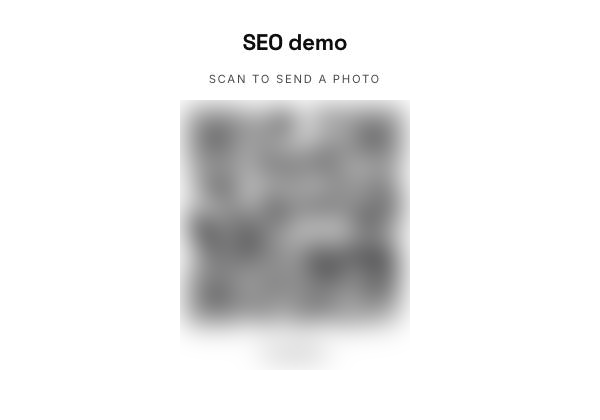
Each event has a guest portal you can switch on from the event page. Punchframe gives it a short code and a link, and builds a printable QR sheet with your event name, the words "Scan to send a photo", the QR code, and the event code printed underneath. Print it and set it up at the booth.
Guests pick a photo on their phone
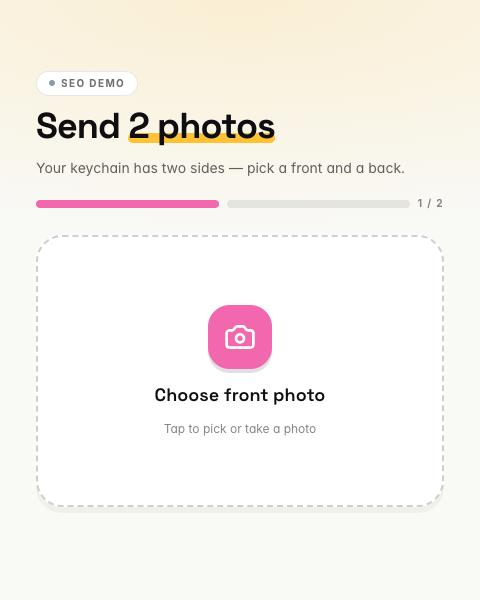
Scanning the code opens the portal in the phone's browser. There is no app to install and no account to create. The guest taps to pick a photo from their camera roll or take a new one.
The crop is done for them, and they can adjust it
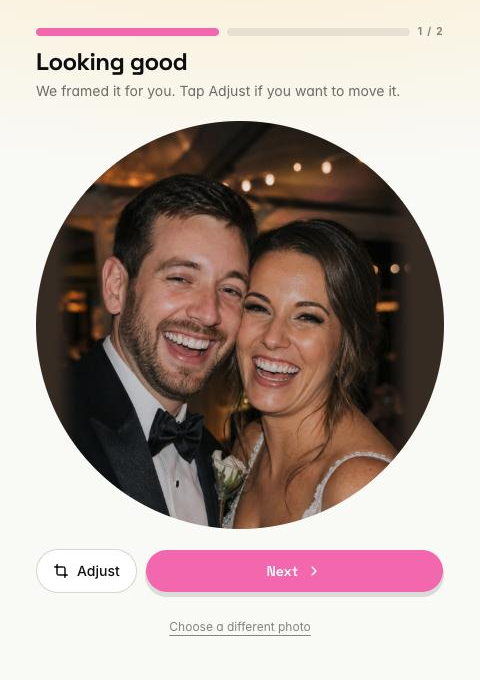
Punchframe finds the faces in the photo and frames them inside your keychain shape automatically. The guest sees the result with a "Looking good" check. If the framing could not fit everyone, it says so and asks them to adjust. Tapping Adjust opens a cropper where they drag and zoom until the subject sits inside the circle. If you have a printed border turned on, the guest sees it around their photo while they crop.
Photos arrive framed and go onto the sheet
When the guest sends, the photo lands in your incoming queue already cropped. On the run screen, guest photos are placed into the next empty slots on the sheet on their own, so you only have to print. For two-sided keychains the portal asks for a front photo and then a back photo.
Limits that keep the line moving
After three keychains, the portal stops offering to send another, which keeps one guest from filling your sheets. You can pause uploads for an event at any time, and guests who scan will see that uploads are paused.
Who it's for
The guest portal suits any event where people are already taking their own photos:
- Wedding photo booths
- Corporate event activations
- Bar and bat mitzvahs
- Trade-show booths
- Party favor businesses
- Brand pop-ups
On the Business plan the guest portal carries your own logo and colors instead of Punchframe's, so it looks like your service.
Questions
Do guests need to download an app to upload photos?
No. The QR code opens a web page in the phone's browser. Guests pick a photo, check the crop and send it.
What if the QR code will not scan?
The QR sheet prints the event code under the QR code. Guests can go to punchframe.app/g and type that code to reach the same upload page.
Do I have to crop guest photos before printing?
Usually not. Guest photos are framed automatically on the guest's phone, and the guest can adjust the crop before sending. They arrive in your queue ready to print.
Can I stop guest uploads during the event?
Yes. Turn the portal off from the event page and anyone who scans the code is told that uploads are paused.