Features
Print keychain sheets that line up with your cutter
Photo booth keychain printing software: frame each photo in a circle, fill a sheet sized to your paper and cutter, and print it from the browser at the booth.
The problem
Photo booth keychain printing looks simple until the line is ten people deep. Each photo has to be cropped to a circle, placed on a sheet so it lands exactly under the punch, and printed before the next guest asks where theirs is. Doing that in a general photo editor means dragging layers around by hand, and one shifted template turns a whole sheet into offcuts.
Two-sided keychains make it harder. Every keychain needs a front and a back, the two have to line up, and you still need to know at the end of the night how many you made so you can invoice for them.
How Punchframe handles photo booth keychain printing
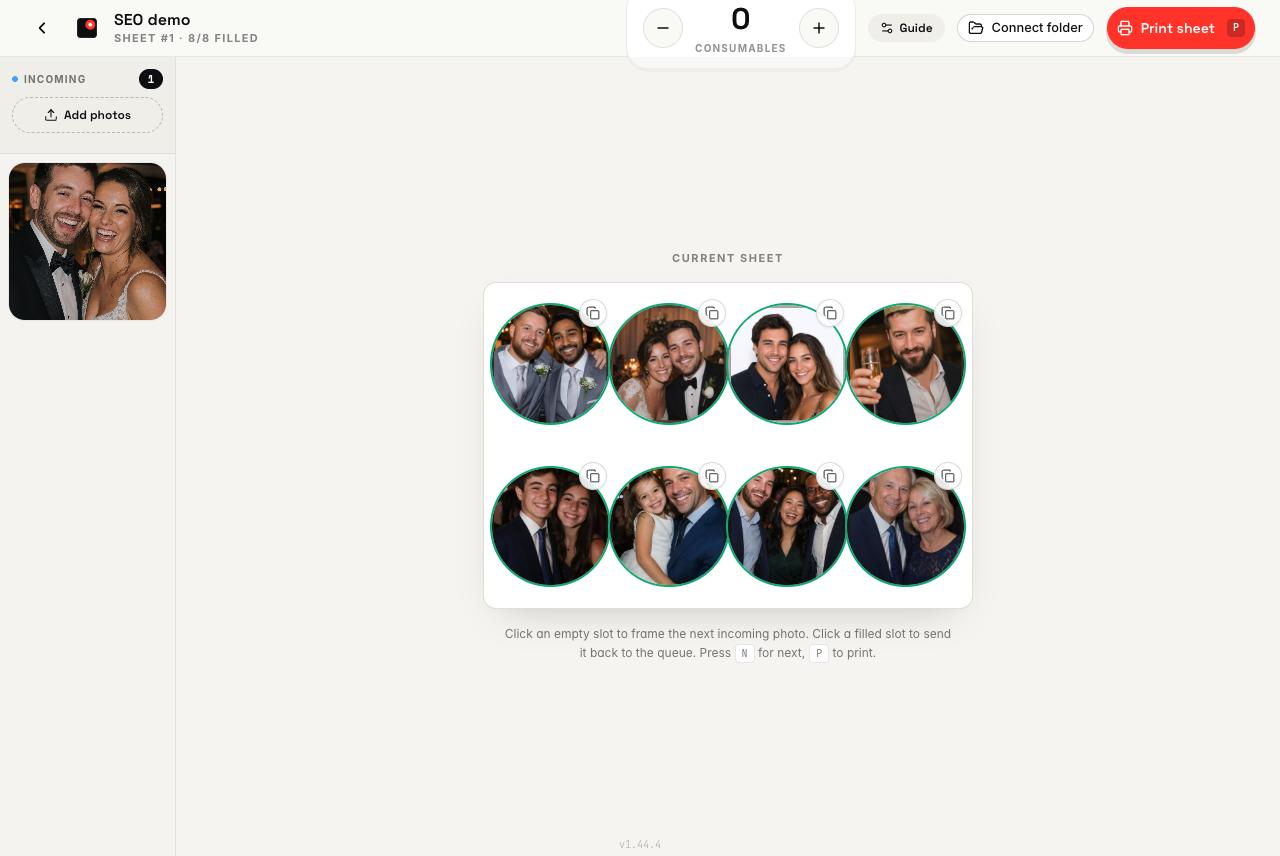
Punchframe keeps the whole job on one screen: photos come in on the left, the sheet you are filling sits in the middle, and printing is one key away.
Set up the event once
When you create an event you enter your paper size, the shape and cut size of your cutter (circle or square), and the bleed and guide ring around each cut. Punchframe works out the sheet layout from those numbers, so each slot sits where your cutter expects it. For keychains you set the event to two sides, and every keychain uses a front slot and a back slot.
Get photos into the queue
Drop JPG or PNG files onto the incoming queue, click Add photos, or connect a watch folder so new shots from your booth camera appear on their own. Folder watching works in Chrome and Edge. Photos from the guest upload portal arrive already framed and are placed into the next empty slots for you.
Frame and fill the sheet
Click an empty slot and the next photo opens in the framing dialog. Drag to pan, scroll or use the slider to zoom, and press Enter to confirm. Press N to frame the next photo into the next open slot without reaching for the mouse. If a guest wants two of the same keychain, the duplicate button copies a framed photo into the next open slot. Click a filled slot to send its photo back to the queue.
Print and keep count
Press P or click print when the sheet is ready. Punchframe renders the sheet at your paper size so the circles match your cutter, then opens the print dialog. Right after printing you can reprint the sheet if something went wrong. A fresh sheet is then ready, and the printed one is saved to the event history with the number of printed slots on it.
Who it's for
Punchframe is built for anyone who shows up to an event with a printer and a cutter and hands out keepsakes on the spot:
- Wedding photo booths
- Corporate event activations
- Bar and bat mitzvahs
- Trade-show booths
- Party favor businesses
- Brand pop-ups
It works the same whether you punch keychains, magnets or buttons. Keychains use the two-sided setup. Buttons and magnets usually use one side.
Questions
Can I use my own keychain cutter size?
Yes. You enter the cut size in millimetres along with the bleed and guide offset, and the sheet layout is built from those values. Circle and square cutters are supported.
How do the front and back of a keychain work?
On a two-sided event, slots are used in pairs: the first is the front, the second is the back. You can put a second photo on the back, or use a fixed back design such as a logo that fills every back slot.
Do I need to import photos by hand during the event?
No. Connect a watch folder in Chrome or Edge and new files from your booth show up in the queue as they are saved. Guest uploads from the QR code portal also land in the queue and go straight onto the sheet.
Can I see how many keychains I printed at an event?
History shows each printed sheet with the time it printed and how many slots were printed on it. A two-sided keychain uses two slots, one for the front and one for the back, so it counts twice.